Completion tracking and certificates
Trainings and training completion tracking
In the training platform, you can always track how many (and which) participants have successfully completed a course they were enrolled in. If your participants are enrolled in a training consisting of multiple courses, you can see whether they have successfully completed the course currently assigned to them. A participant can only be enrolled in one courses at a time within a training.
Period picker
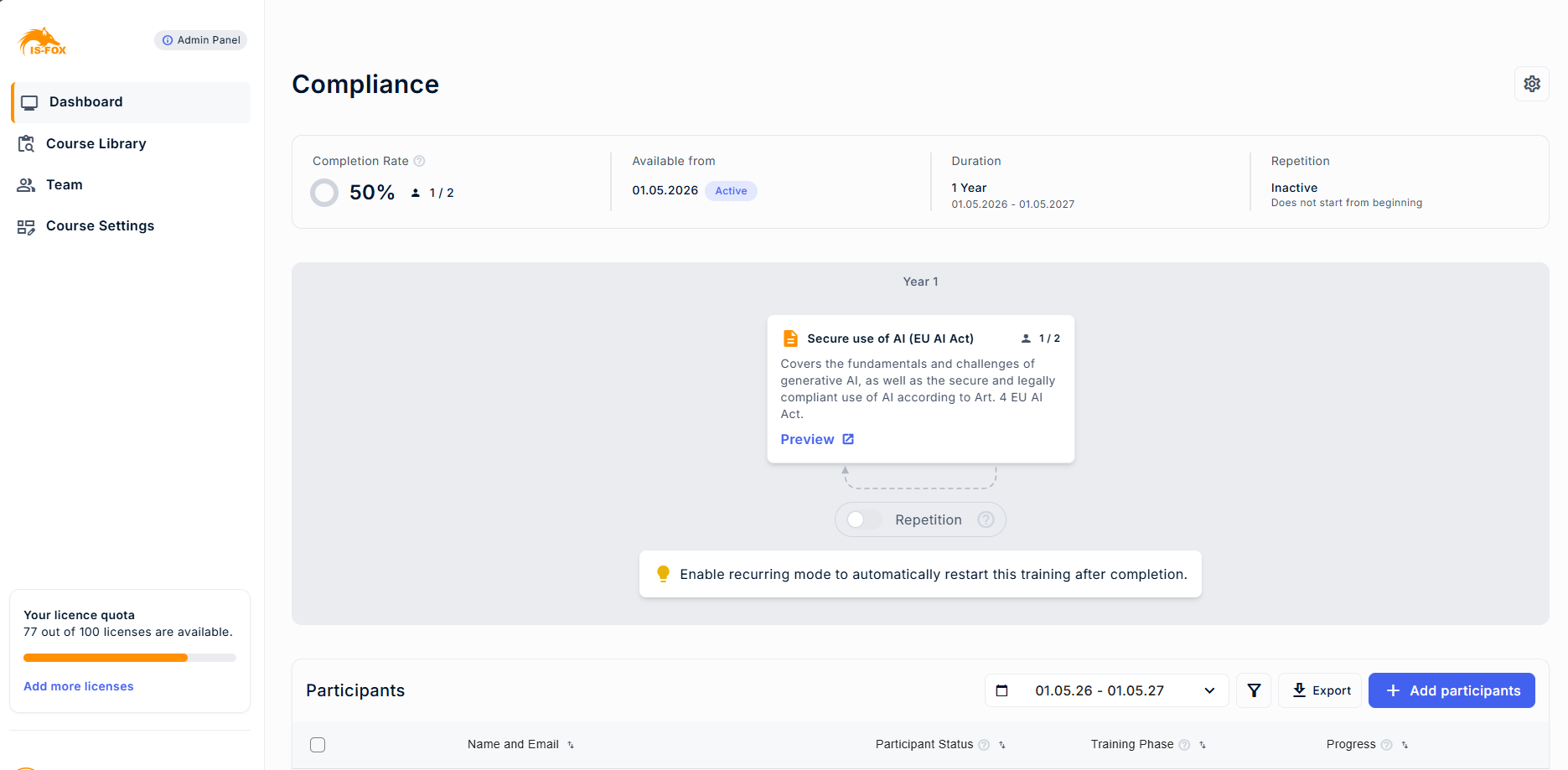
The period picker is a filter that lets you select a previous training period and view historical participant data. It appears only when more than one period has passed. If the training is still in the first period, the period picker will not be shown.
- The Period Picker is a list of current and previous periods.
- Periods can be structured as: months, quarters or years depending on the phases of your training.
- Select a period from the list to filter the participant view for that period.
Note: Whatever period you select in the period picker will also apply to the CSV export.
Participants list
The participant list shows at which phase of the training each student is, and their progress. Participants' progress can be invited, started, completed, or overdue.
- Invited means we have sent a course invitation to the participant.
- Started means that the participant has opened the course.
- Completed means the participant has completed all the chapters of the course and passed the final test.
- Overdue means that a participant did not complete the course within the period in which it was originally assigned to them. For period-based trainings (monthly, quarterly, or yearly), participants who do not complete the course are automatically assigned to it again in the next training period. For trainings with a fixed end date, participants are marked as overdue once the deadline has passed. However, they can still access and complete the course after the deadline. This ensures that participants are still able to complete the required training, while admins can clearly identify that the original deadline was missed.
Certificates
Certificates can be used to document completed training activities and support audit, compliance, and employee record requirements.

A certificate is generated when a participant successfully completes a course. Each certificate includes the participant's name, the course name, the chapters completed as part of the course and the completion date.
Certificates can be accessed by both participants and admins. Participants can download their own certificates, while admins can access and download certificates for their employees as well.
- Each participant can access the certificate after completing the course under "Create certificates" in the training platform.

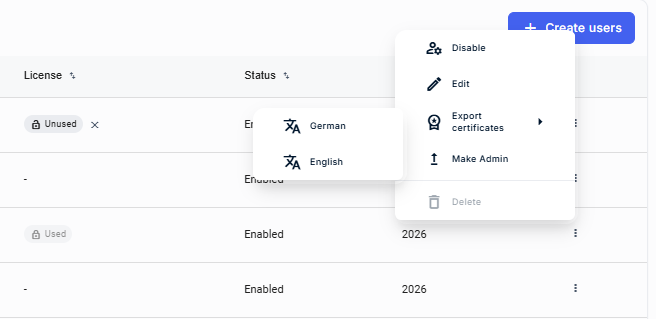
- Admins can download certificates directly from the IS-FOX admin panel for a single participant, all selected participants, all participants within a training period, or all certificates belonging to a specific participant from the Team tab.
- Before downloading, admins can choose whether certificates should be generated in English or German.
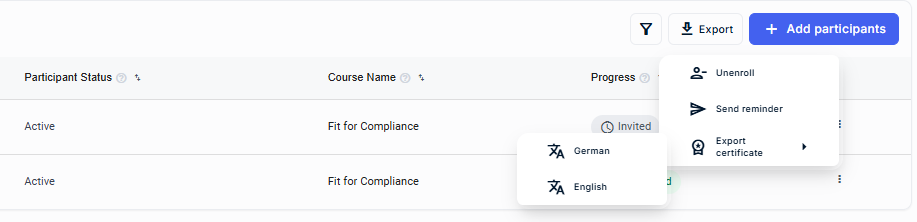
Certificates remain available for historical records. They can still be downloaded for past training periods and remain accessible from the Team tab even if the original training has been deleted.
Note: Certificates are only available for completed courses.
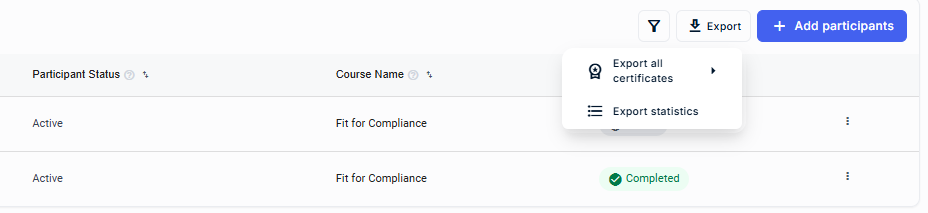
For training reporting and audit purposes, admins can also export training statistics as a CSV file. The CSV export can be downloaded from the Training Overview page by clicking Export > Export statistics.