
The course library
How do I find the course library?
You will find the “Course library” button at the top right of the dashboard page. Alternatively, you will find the Course Library menu in the navigation bar on the left.
What can I do there?
The course library is the starting point for all your trainings.
- Select your course: Choose a course of your choice. We'll show you which courses are perfect for getting started. At the top right, you can search for specific topics or filter by topic area.
- All details: When you open the course, you'll find all the details. Which chapters are included, available languages, duration, etc. On the right, you'll see a preview of the course. So you can jump right into the course content and see what your participants will see later.
How do I create a training?
Click on Select course and there are just two steps left:
- Set training period: Every training course needs a start date and a duration. Use the default settings or adjust them as needed. Give your training a name, select an activation date, and set the duration.
- Invite participants: Invite yourself and other users to the training. Participants will receive an email inviting them to complete this training. A link in the email will take them directly to the training area.
Add more courses
Instead of setting a training period for a single course, you can also create a custom training with multiple courses from the library:
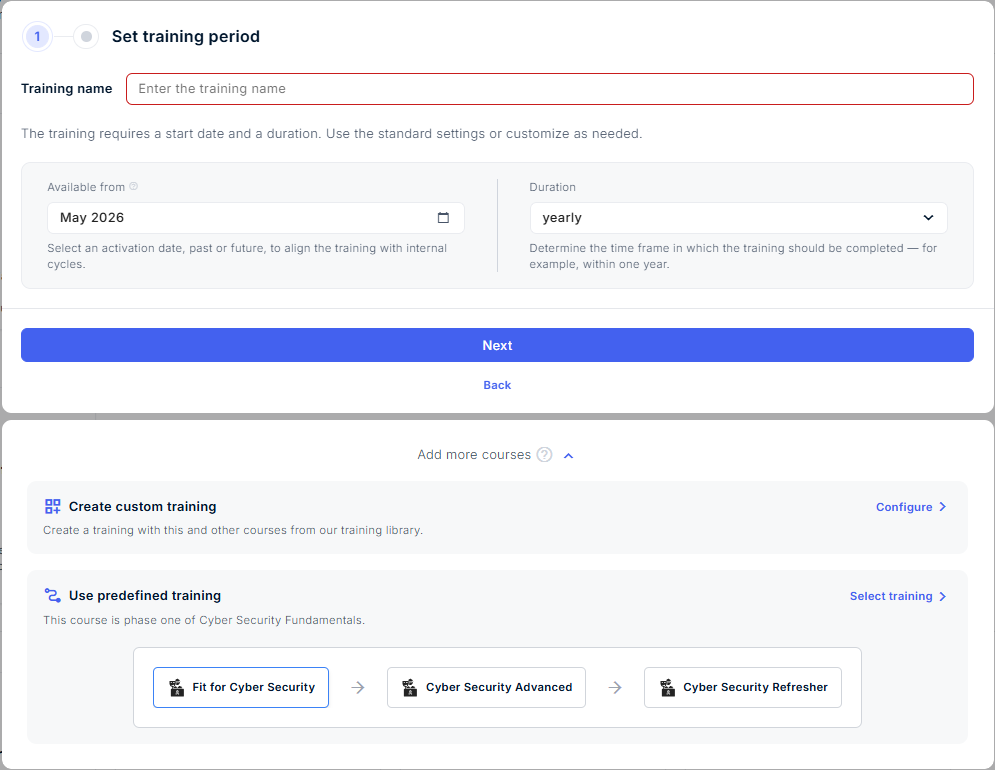
Simply specify the training name, topic area, and training period. You can then create up to 20 phases and add different courses to your training.
Another option is to use predefined trainings. For some courses, we offer ready-made training programs based on IS-FOX’s 20+ years of expertise. These curated trainings follow three key principles:
- Expert-driven: Built from extensive experience in awareness, compliance, audits, and security.
- Evolving content: Trainings adapt to employees’ learning progress each year (“modular learning”).
- Set and forget: Enroll users once, we take care of the rest.