
Course settings
The Course Settings feature allows administrators to customize course content with company-specific information and branding. This ensures participants see relevant contacts and details tailored to your organization.
Where to find it
- Go to the navigation sidebar in IS-FOX
- Click “Course Settings”
What you can configure
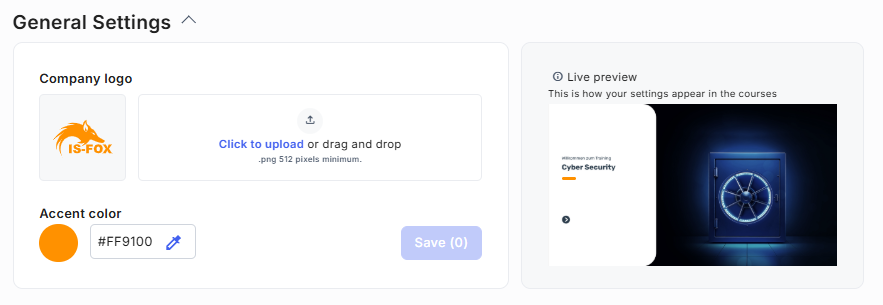
General Settings
- Company logo
- Accent color
These settings define the overall branding of your courses.
Topic Area Specific Settings
Customize content like contact person, contact details and links for the courses in Data Protection, Cyber Security and Compliance topic areas. The courses in Occupational Safety topic area don´t have any settings.
Topic areas that are not part of your subscription are locked and cannot be edited.
Making Changes to Your Settings
When customizing your settings, changes are applied and saved differently depending on the section you are editing.
1. Making Changes
General Settings
- Live Preview: Any changes made in General Settings are instantly visible in the preview on the right side of your screen.
Topic Area Specific Settings
- Default Values: These settings display preset default values. Any custom text or configurations you enter will overwrite these defaults once saved. If a field does not show a default value, it means this setting is hidden from participants until you provide a custom value.

- Resetting to Default: If you change your mind after entering a custom value, a Reset option will appear next to the field. Clicking it restores the original default value.
 Examples: Participant View
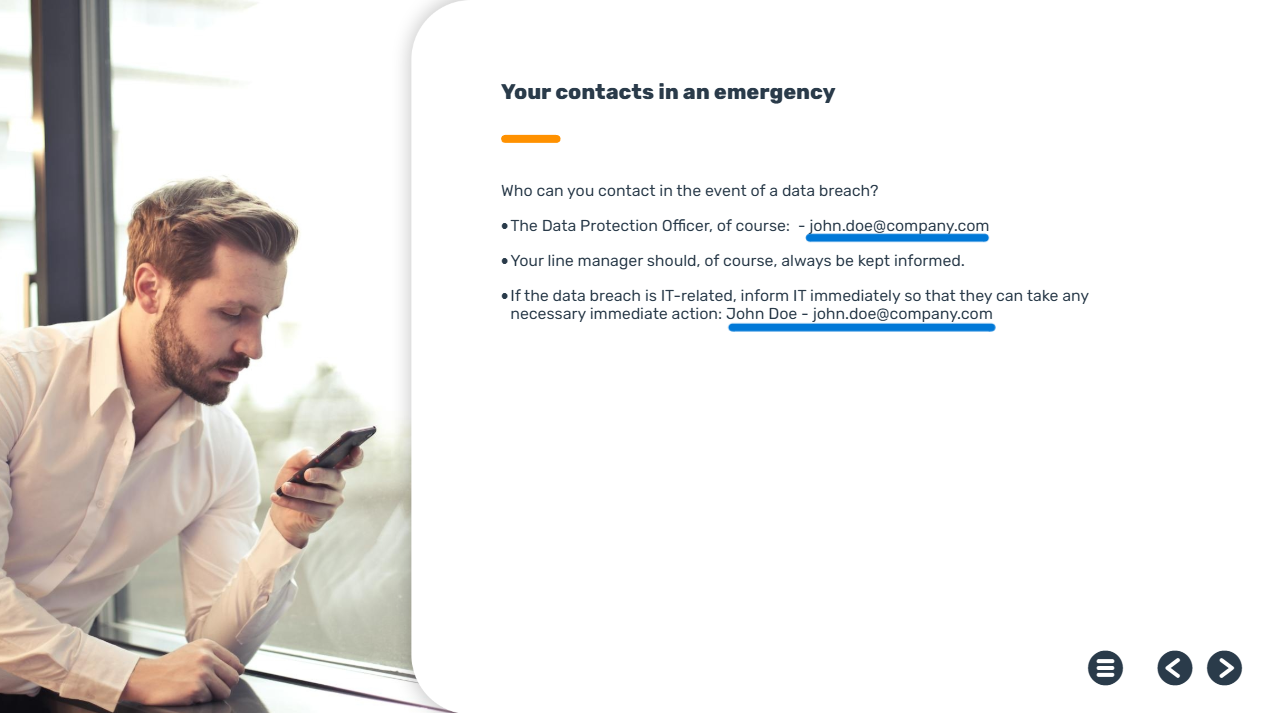
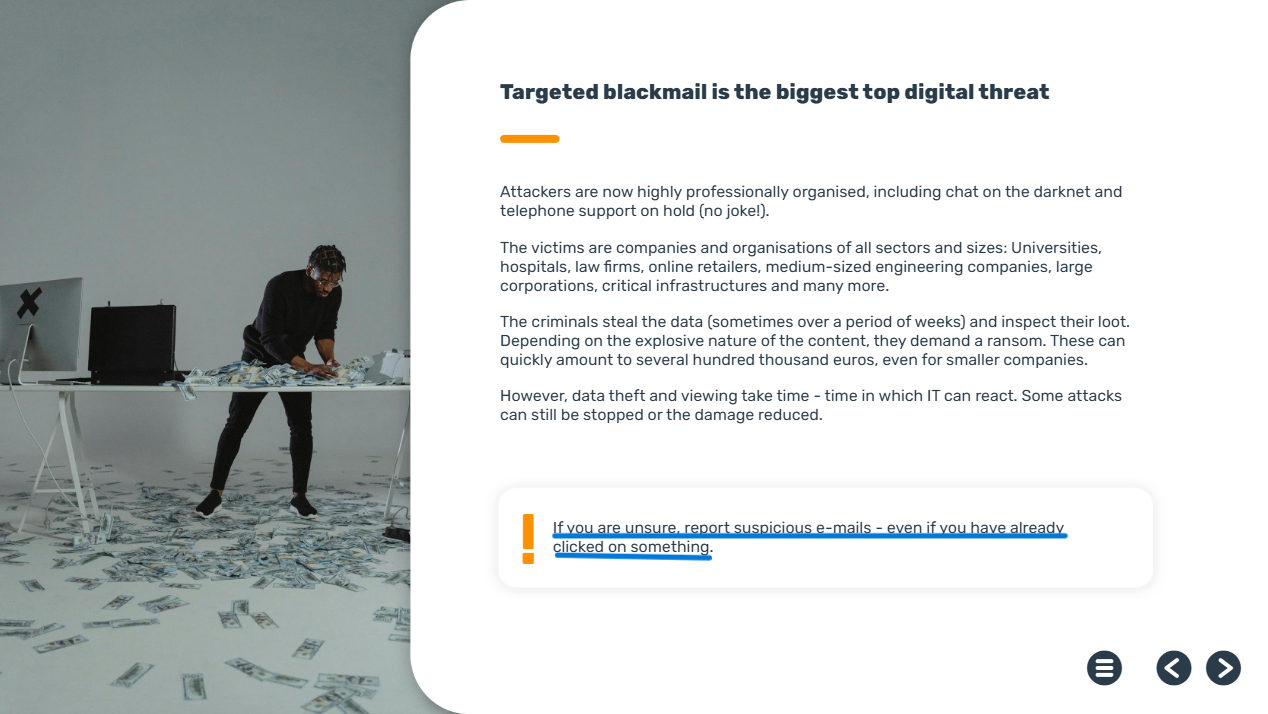
Below are examples of how changes made in the Topic Area Specific Settings look from a participant's perspective.
Emergency contacts in the event of a data breach:
Phishing reporting note:
2. Saving Changes
When you upload a logo, change an accent color, or modify any text field, the system will prompt you to save.
Changes only become live and visible to your participants after you explicitly click save.
Where to Save
- General Settings: Use the Save button at the bottom of the section to save changes to your company logo and accent color.
- Topic Area Specific Settings: A Save banner will appear at the bottom of the screen to save changes made within this specific section. This banner displays the total number of unsaved changes as a reminder.
When you are ready to finalize your updates, you have two choices:
- Save Changes: Applies your updates and refreshes the course content for all participants.
- Discard: Cancels all current modifications and restores your previously saved values.
Frequently Asked Questions (FAQ)
What happens if no settings are defined?
If no custom settings are configured, the system will display default values to participants.
Can I revert custom settings to default values?
Yes, you can reset any setting to its default value. A reset option appears next to each field once a custom value is defined. Clicking this option restores the default value for that specific setting.
Do changes apply to all users enrolled in the course?
Yes, changes apply to all users enrolled in the course, including those who were assigned previously. Participants will see the updated content once they reload the course page.
Does changing settings impact the course progress of users who have already started the course?
No. Updates are independent of course progress, and user progress is not reset after changing any settings. Participants will see the updated content once they reload the course page.